
PPSSPP Android Setup Guide
Table of contents
Best devices for PSP on Android
If you’re curious what the best devices are, here’s a few of my top picks:
- Snapdragon 8 Elite Device! AYN Odin 3 – (Review)
- Best All-Rounder Device! AYN Odin 2 Portal – (Review)
- Dual Screen Device! AYN Thor – (Review)
ROMs
You will need your own ROMs for today’s guide – for many reasons, I can’t help you with how or where to get them.
PSP ROMs are usually in an ISO or CHD format – CHD is the recommended format as they’re much smaller and save space, but ISO is just fine and you can always convert ISO to CHD if you want.
As for organizing these files, I would create a ROMs folder on your device or your SD card if you have one connected, and then create a psp folder and throw all your games inside of it.
Once again, all of this can be done directly on your Android device just using any file manager and web browser.
Installing PPSSPP
PPSSPP can be installed through the Google Play Store or through their website – it’s entirely your call, Play Store can keep it up to date or you can use something like Obtainium to keep the APK up to date.
Install the app and then open it.
This very first page is important – it’s asking where to save all of your data and there’s really only one option here, it’s pre-selected already to Create or Choose a PSP folder.
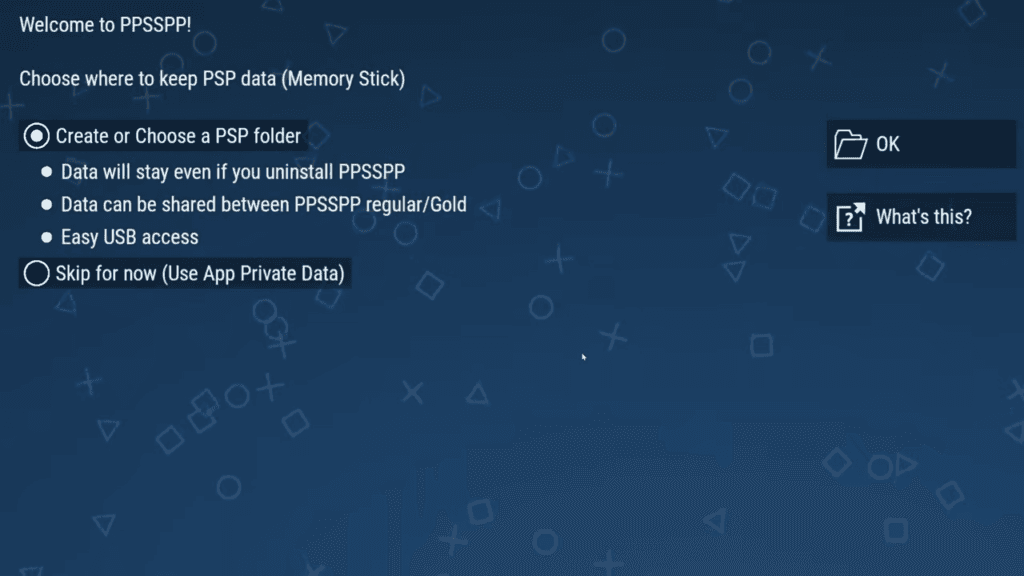
So click OK on the right and now, if you have an SD card, I’d suggest you head there otherwise if you don’t, use the internal storage, and create a folder called PPSSPP right on the root of the SD card or internal storage.
Then select use this folder and allow.
Then click OK on the next screen.
Alright now first up, let’s tell PPSSPP where our games are so click the Browse icon and navigate to your ROMs folder and then your PSP folder that we created earlier.
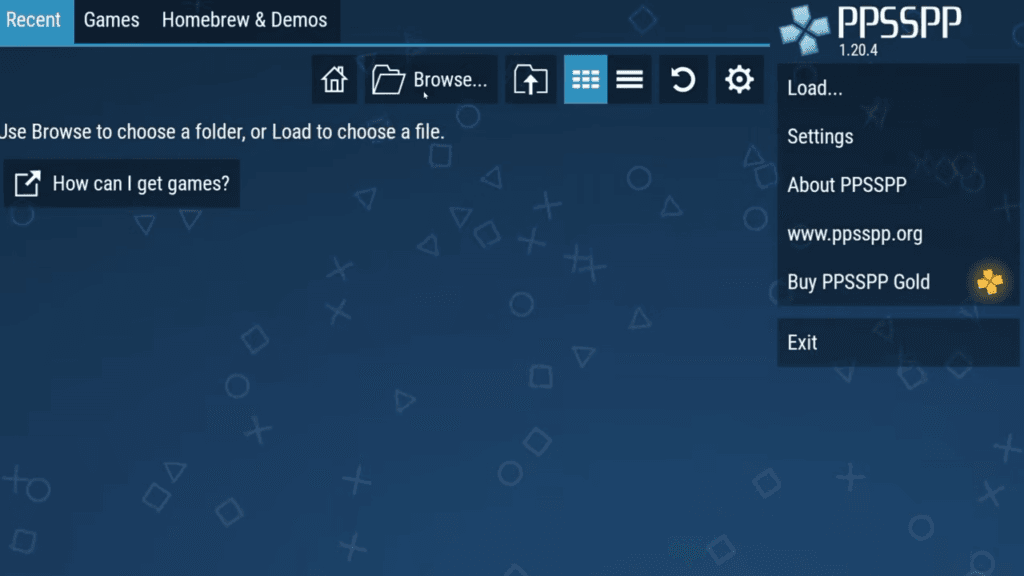
Select use this folder and allow.
You should now see your games populated on the screen as square icons.
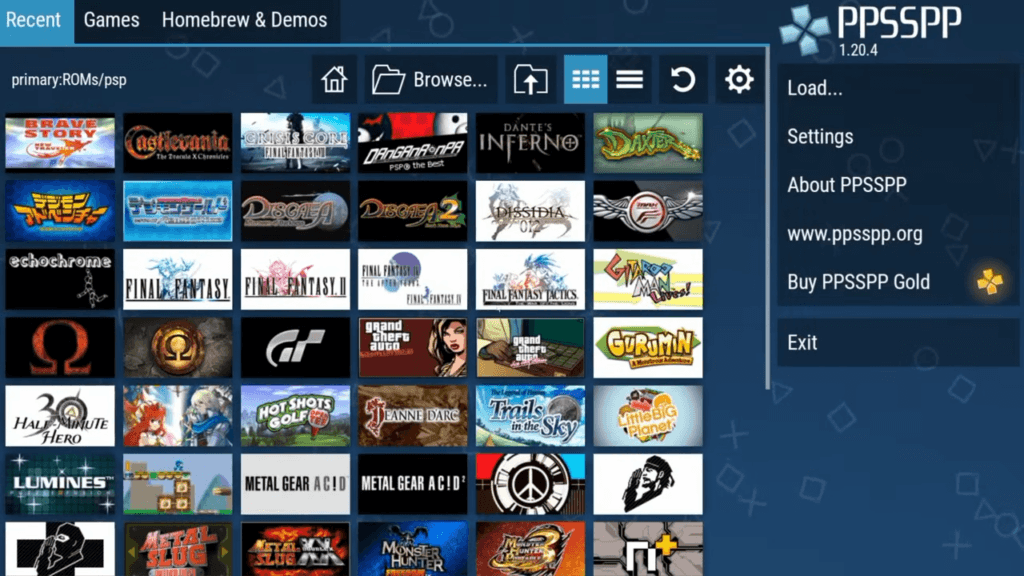
Before we launch anything though, we have settings to take care of
Settings
Click Settings on the right.
Graphics
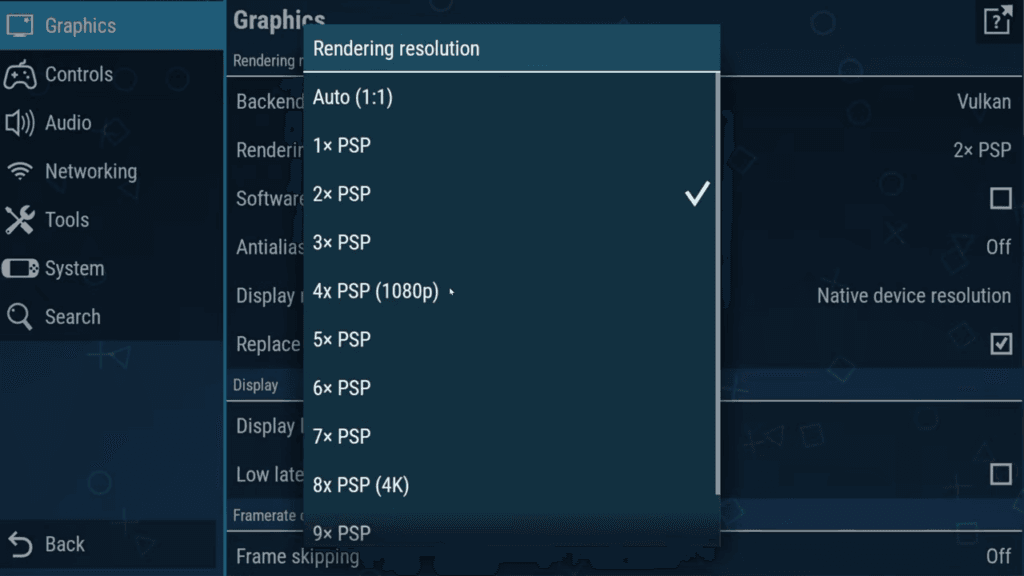
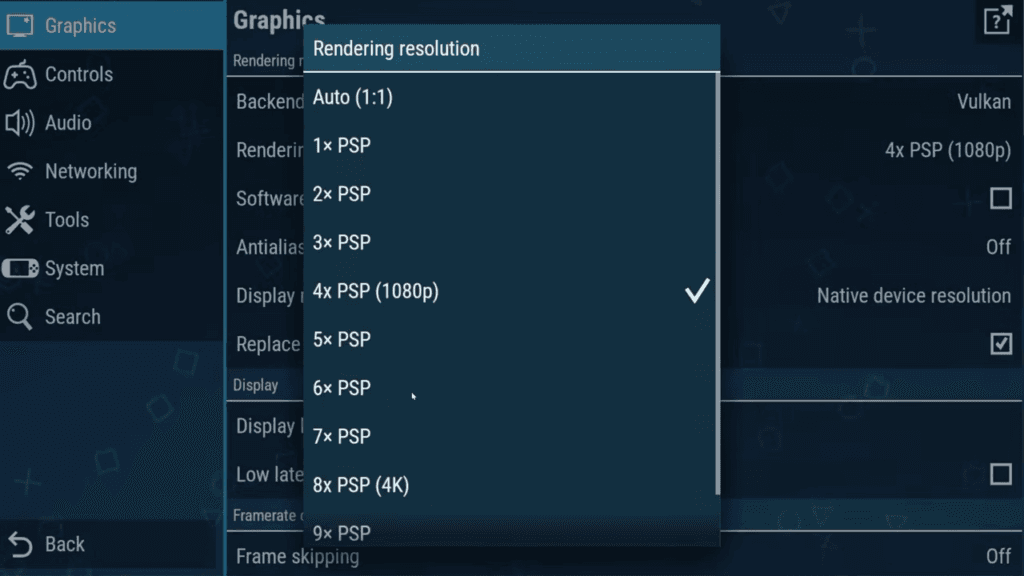
Vulkan is usually the default backend and no reason to change it, but you can adjust the upscaling through rendering resolution.
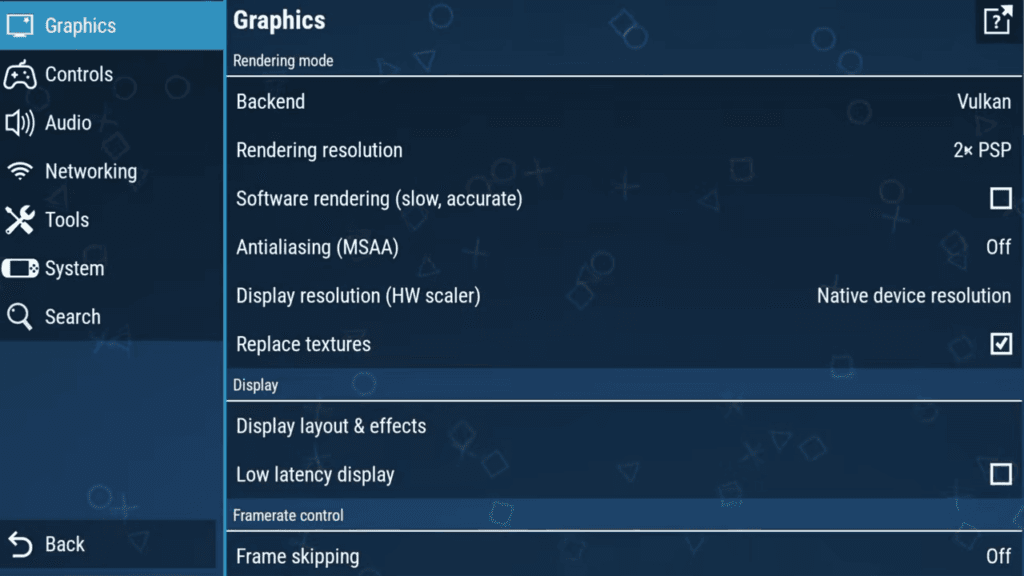
If your Android device is powerful enough, you can upscale to 1080p or beyond to match your screen – I’ll be doing 1080p.
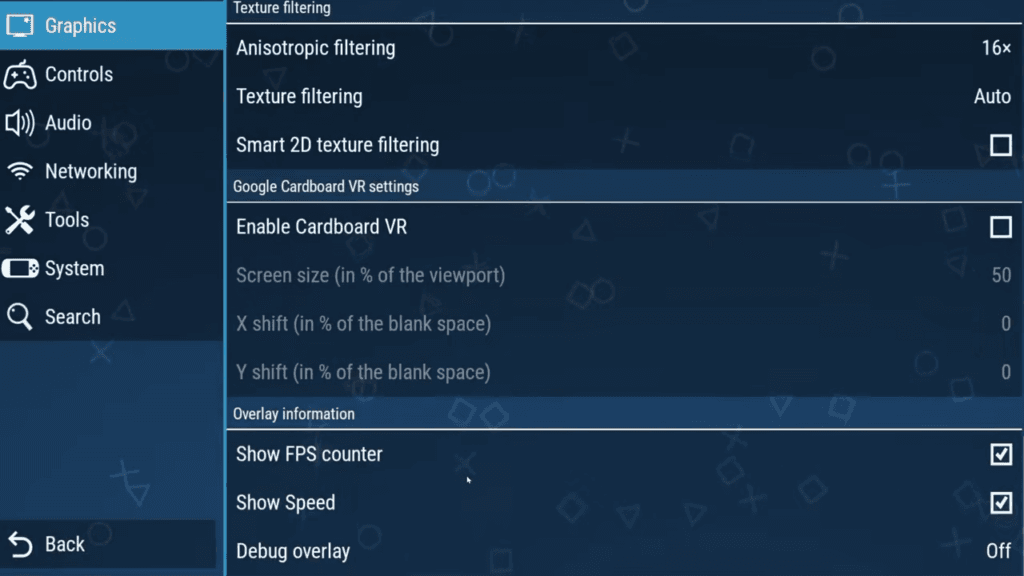
There is actually no real reason to touch any other setting except if you scroll all the way down, you can enable Show FPS counter and Show Speed to show performance in game.
Controls
Let’s head to the Controls tab next.
Uncheck On-screen touch controls if you’re using a handheld or controller to remove the on-screen controls.
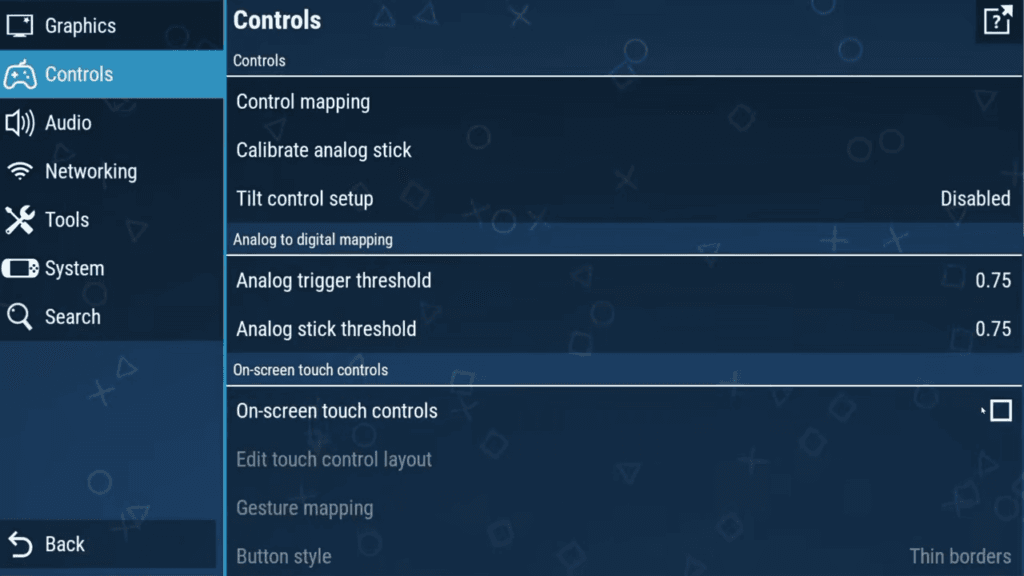
Then choose Control mapping.
Go ahead and choose Clear all, then go and map each item to your controller or handheld.
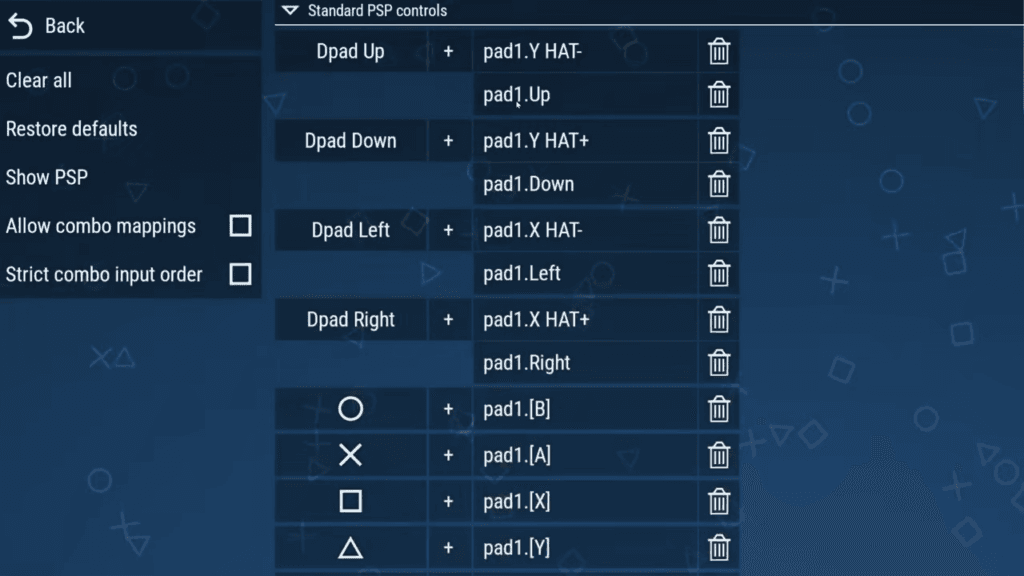
So Dpad Up to your Dpad Up and so on.
Skip the Control modifiers section.
In the Emulator controls section, I like having L2 as Pause, and R2 as Speed toggle. Speed toggle is a fancy way of saying fast forward toggle so you don’t need to keep it pushed down.
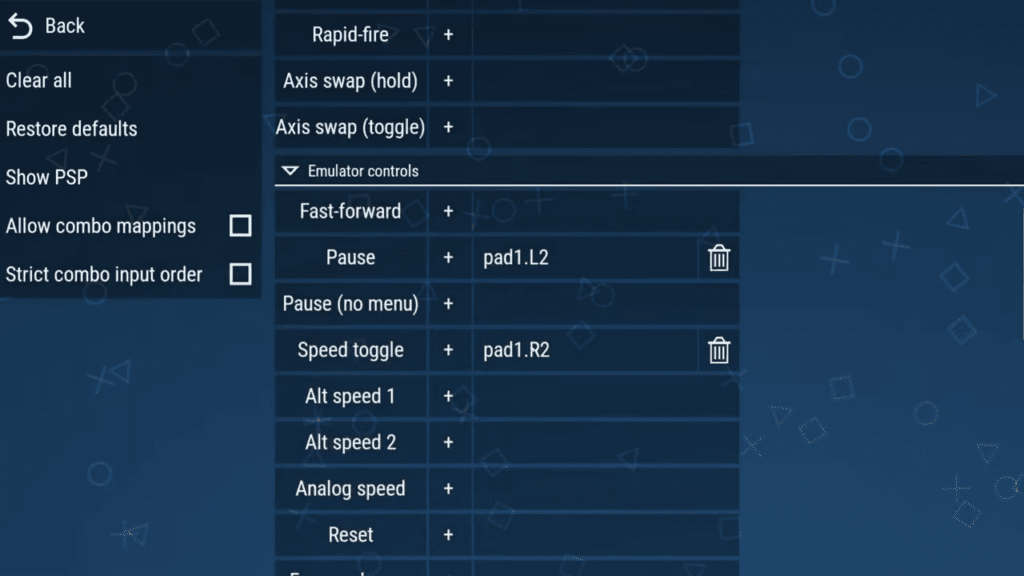
You can also setup more hotkeys if you want, I would enable Allow combo mappings on the left side, and then use combo hotkeys like L3+L1 for Load State, L3+R1 for Save State and so on for anything you think you may use.
You can always come back here later to change things.
Speed toggle
Now with speed toggle, you might find that the game fast forwards a little too quickly depending on your hardware.
To change that, head to the Graphics screen and scroll down to Framerate control, you should see Alternative speed and it’s set to Unlimited by default.
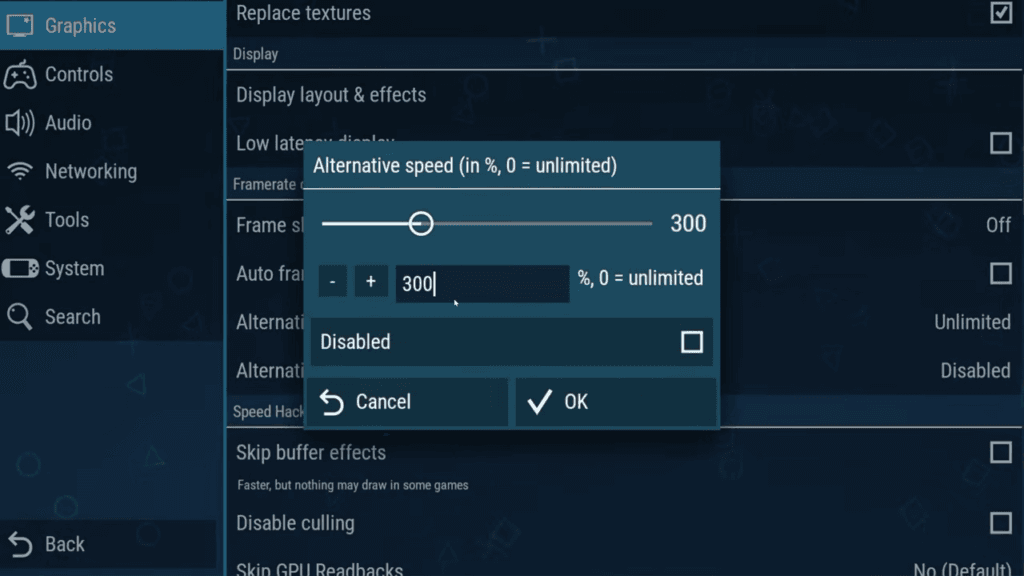
You can change that to maybe 200% or 300%, which would cap the speed toggle to 2x or 3x speed, which is a lot more manageable to use.
This is only if you’re finding the fast forward speed to be a bit too quick.
RetroAchievements
Click Back and let’s head to Tools.
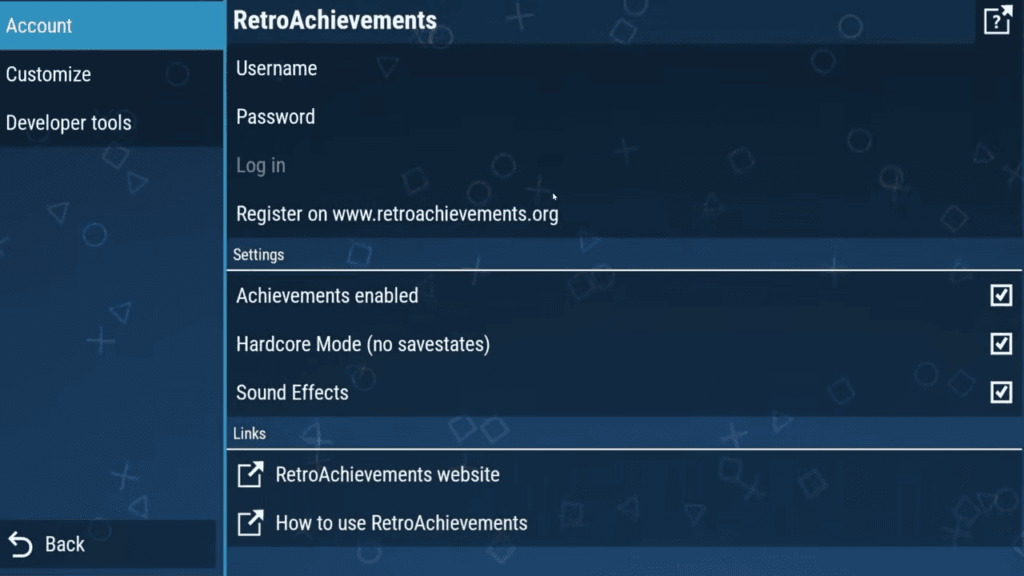
If you use RetroAchievements, select it, then enable it and turn off Hardcore Mode if you don’t use it and login with your username and password at the top.
System
Back out and head to System next.
There’s a few settings here that you should know about.
Under Save states, you can enable Savestate slot backups if you want to have more options to go back to for save states.
You can also turn on Auto load savestate so it boots into your last save state when starting a game.
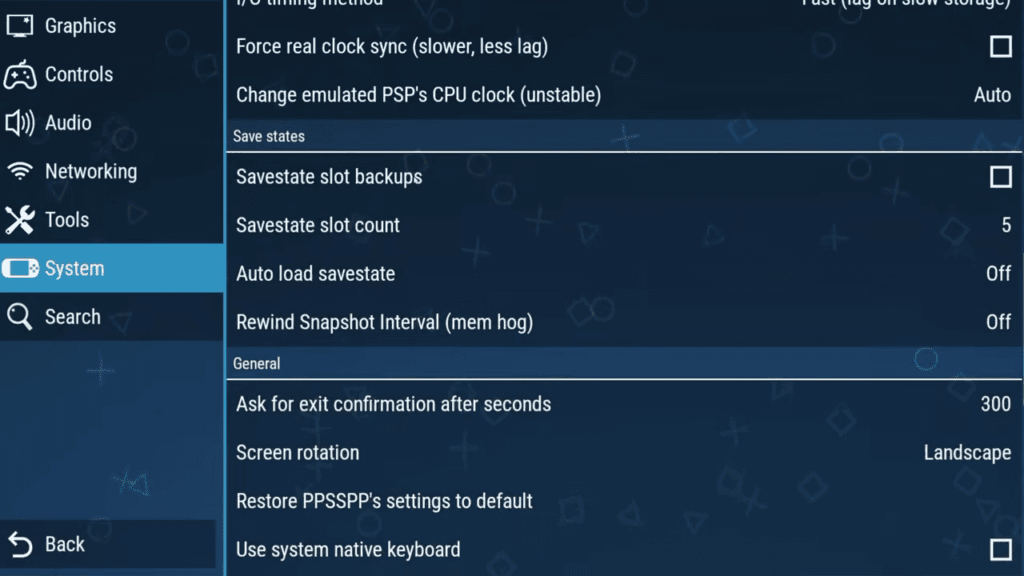
I don’t personally use these options.
Scroll down to Cheats and make sure you Enable Cheats.
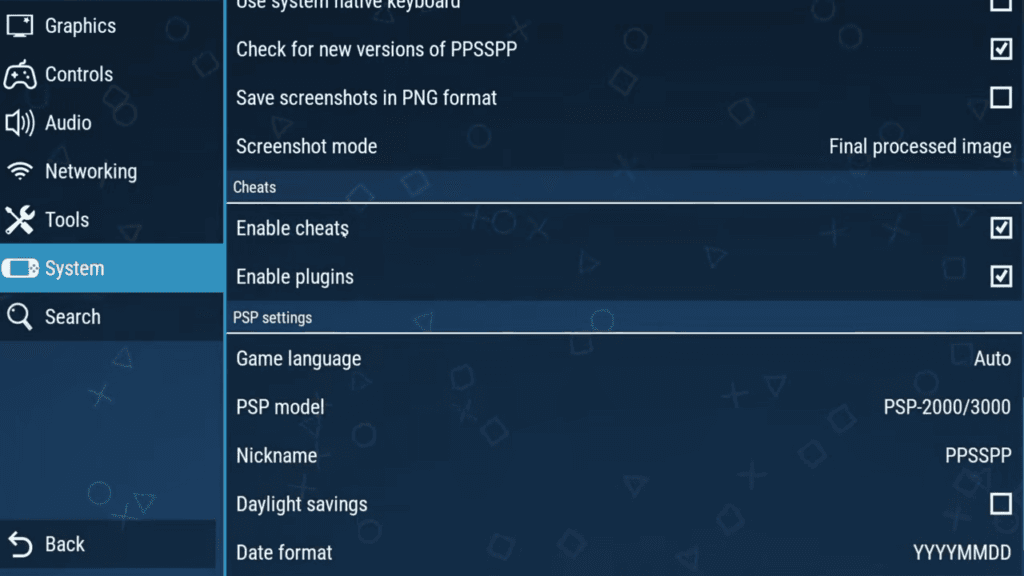
In-Game
Back out to the main menu.
Go ahead and select a game to load into it.
If you push the back button on your handheld, swipe up and hit the back arrow, back gesture or if you mapped the Pause button to L2 earlier, you can get the in-game menu.
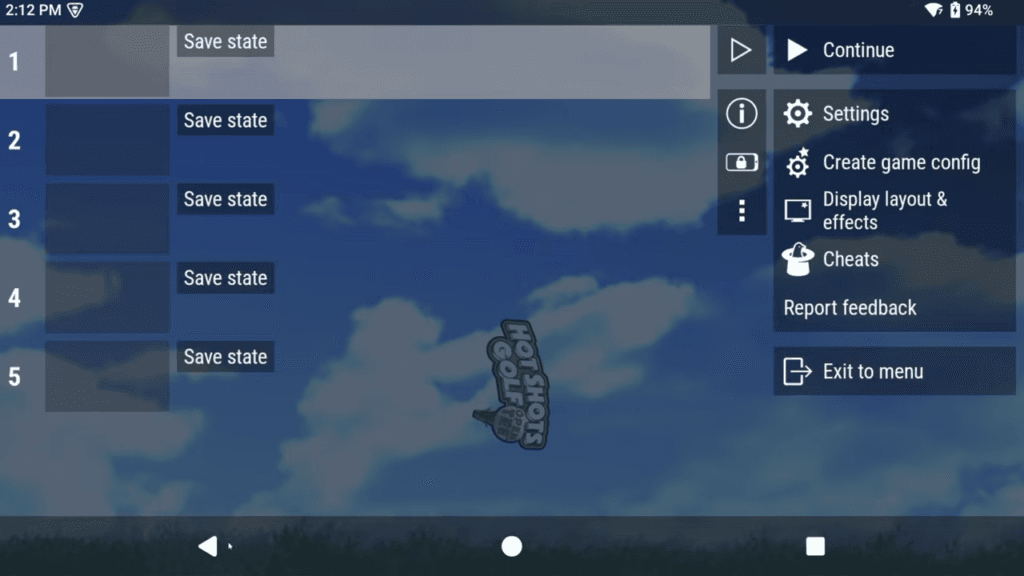
From here, you can Save state and Load state from any of the options.
You can head back to the Settings screen to adjust settings.
Per-Game Settings
But, you can also Create game config which let’s you create per-game settings if you click Yes.
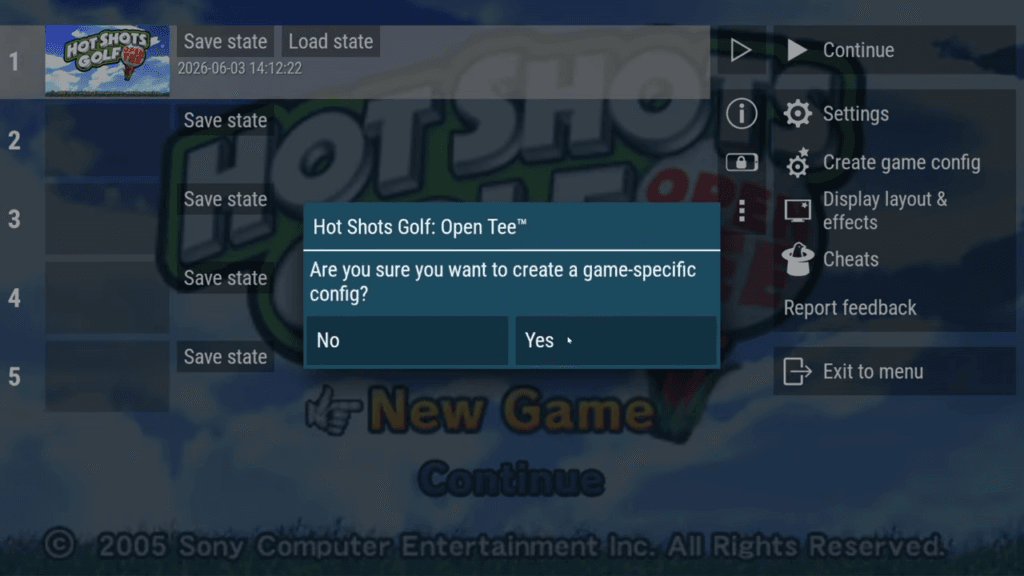
Now Settings becomes Game Settings and any changes you make only apply to this specific game.
Otherwise, that’s it, enjoy playing and when you want to exit a game, use this menu to do so.
Cheats
Now, let’s cover some more advanced features and we’ll start with Cheats.
We enabled cheats through the settings earlier.
There is an awesome Github with an updated Cheat database that has everything we need.
Download from here: https://github.com/Saramagrean/CWCheat-Database-Plus-
Head to that Github link, click the cheat.db file that you see, and then the Download file button all the way on the right.
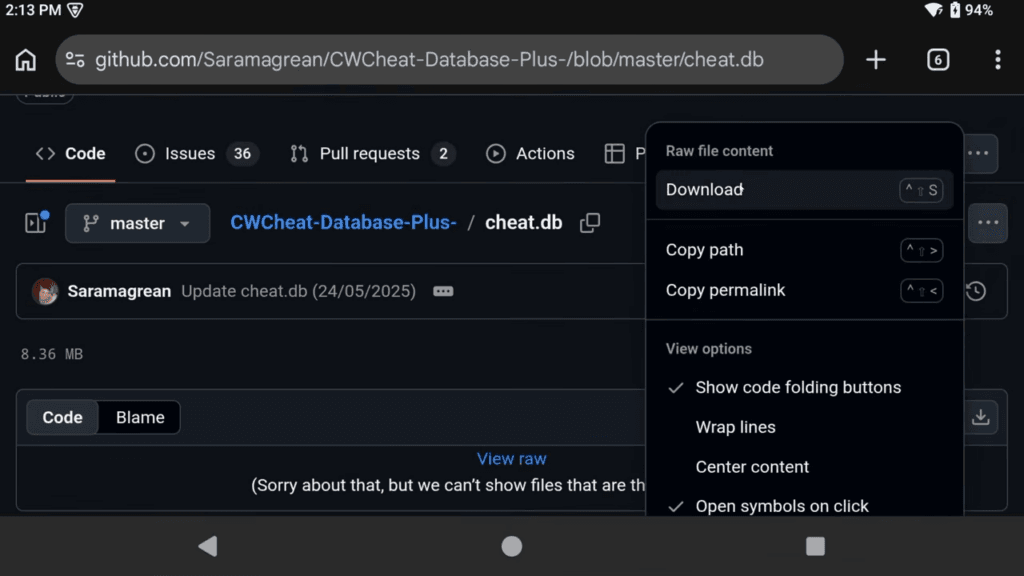
Depending on how it downloads, it might download as a .txt file, in which case just rename it and remove the .txt.
It should read as cheat.db.
Now you need to move that file into the PPSSPP folder we created when we installed PPSSPP, which is just right on your SD card or internal storage if you followed what I did.
You should see a PPSSPP folder, then go inside of the PSP folder and lastly the Cheats folder.
Put the cheat.db file right in there.
Go restart PPSSPP if it was open, and jump into a game and open the in-game menu.
You should now see a Cheats tab on the right, then you want to select Import top left to import from the cheat db.
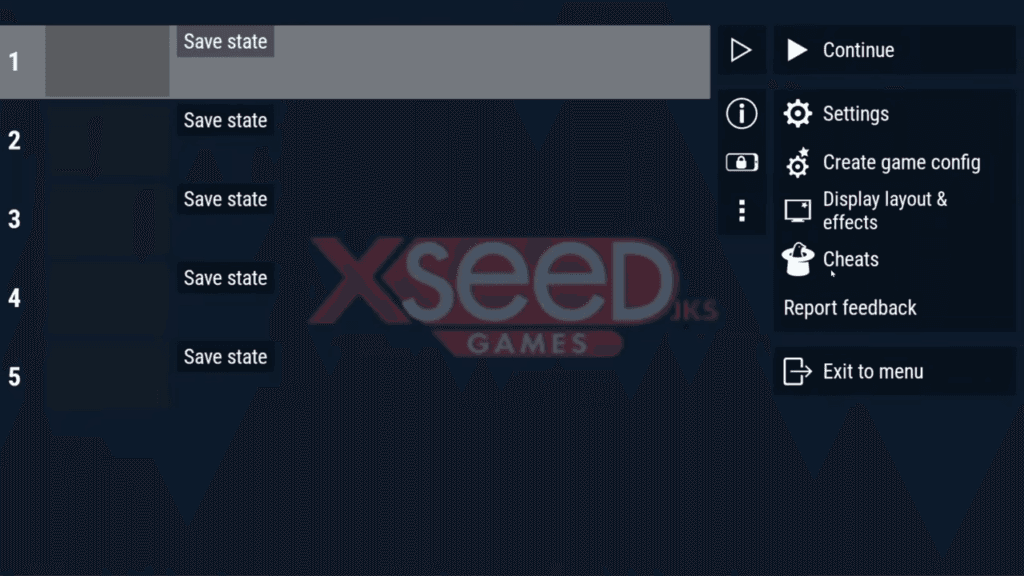
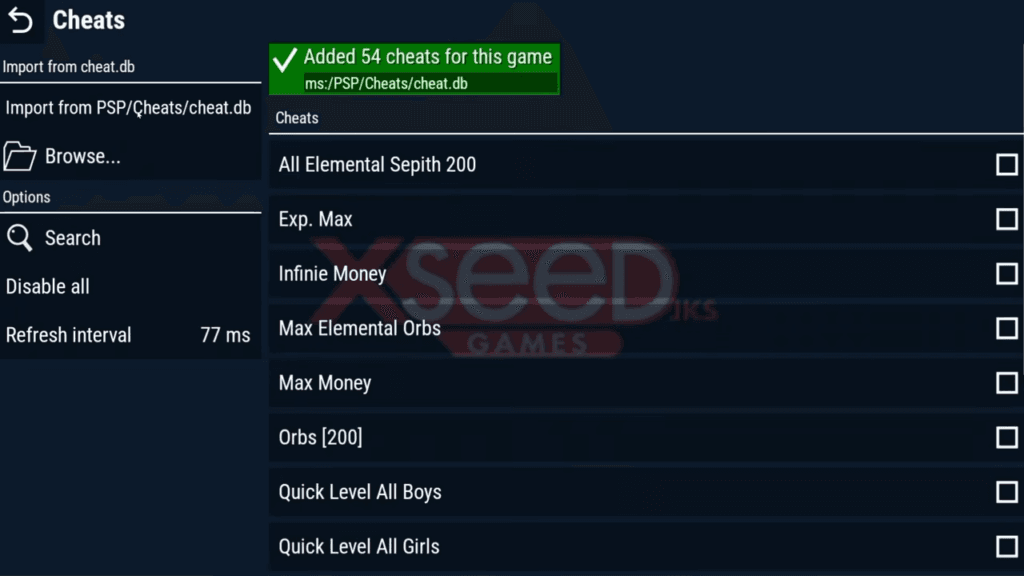
There should be a bunch of cheats on screen now.
For any other games, all you have to do is the Cheats menu and Import Cheats to see them.
As with anything cheat related, some can and will break your saves or cause other weird things to happen sometimes, so just be aware of that. It’s the risk you take for having god mode.
60FPS
Now, combined with Cheats are 60FPS cheats.
Some 60FPS cheats are already included in that cheat db, but some aren’t.
You can find a master list of 60FPS cheats on the PPSSPP forums as well as a video with how to apply them (https://forums.ppsspp.org/showthread.php?tid=22800), but before going through all that double check they don’t already exist in the cheat db we imported.
HD Texture Packs
Next up we have HD texture packs.
The PPSSPP forums once again have a master list of HD texture packs that you can choose from.
HD Texture Packs: https://forums.ppsspp.org/forumdisplay.php?fid=36
Let’s look at Final Fantastic Tactics.
Scroll down on that page, and the download is on their Github, so click that.
Now you want Releases on the right and download the Source code zip file.
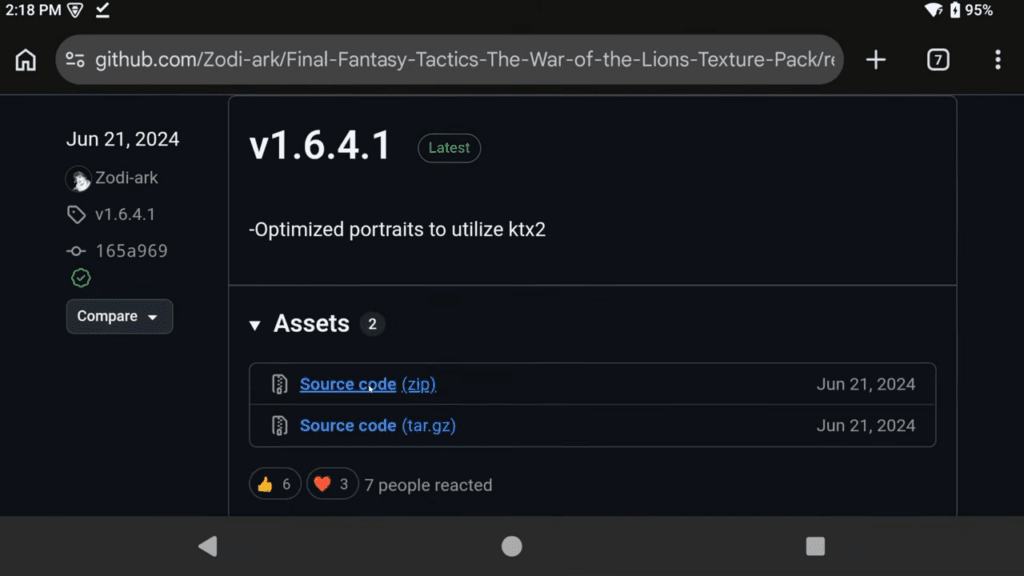
I suggest doing this on the device – it’s a large 2.7GB file, so might take some time.
Now, open PPSSPP and for this game specifically, they state Rendering Resolution has to be set at 4x or above, and they recommend 6x, so make sure you’ve changed that as well. You can exit the game after.
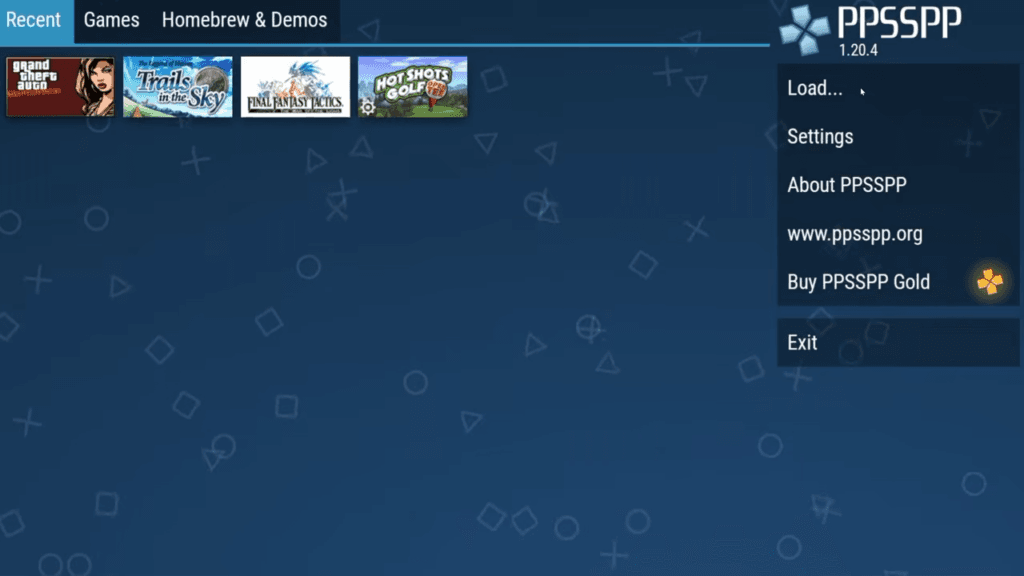
Now in PPSSPP, click Load on the right and navigate to that zipped texture pack and select it.
You can now click Install and navigate to the zip we downloaded.
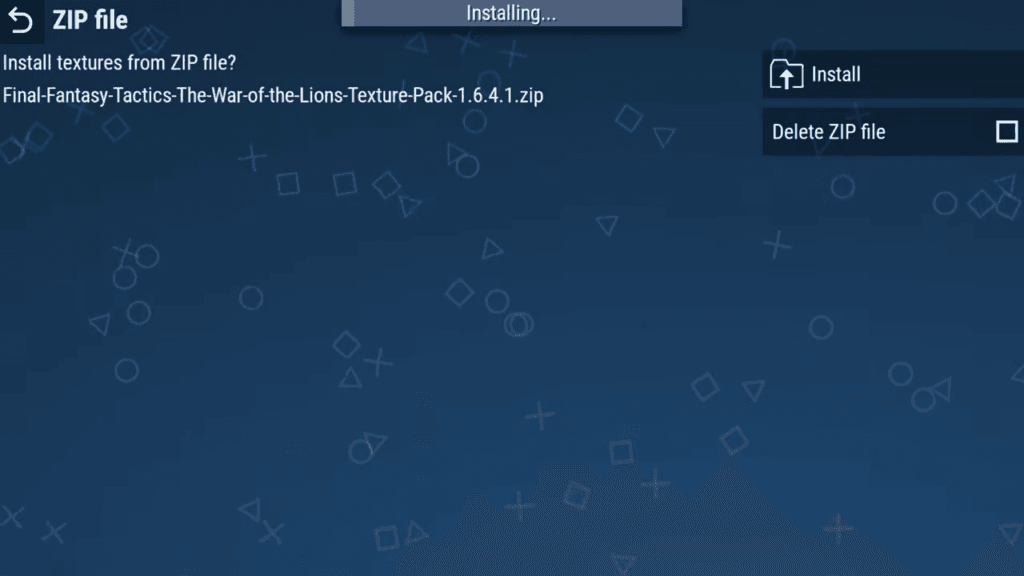
It’ll take some time so just be patient.
Now I got an error, storage full, despite me having like 200gb of space available on this device, so let’s look at how to work around this.
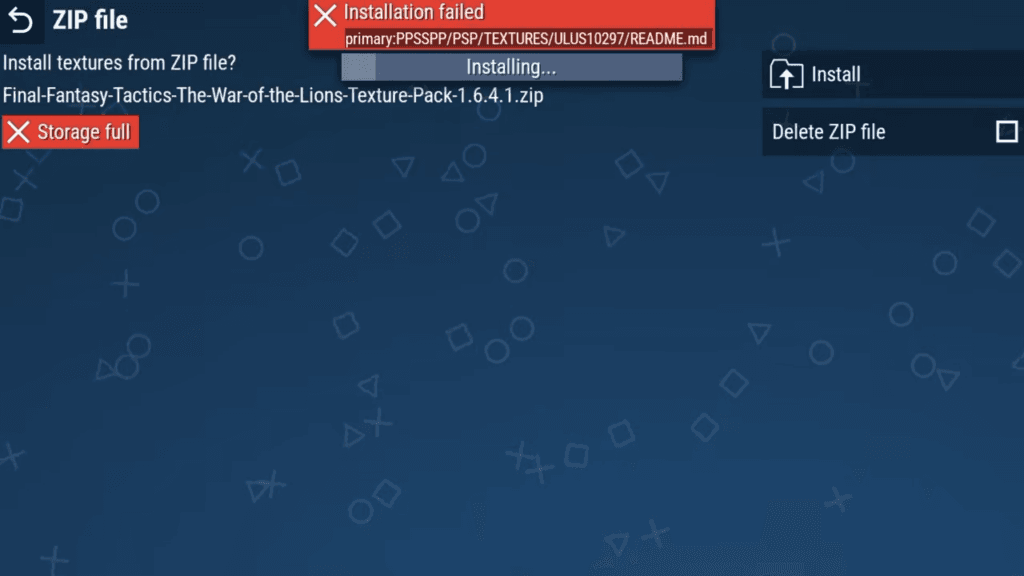
If yours installed properly, you don’t need to do this.
For everyone else, go ahead and extract the zip we downloaded.
We now need to rename this folder to the title ID of the game, so if you open Final Fantasy Tactics in PPSSPP and click the I button, you can see the ID right under the name which is ULUS10297.
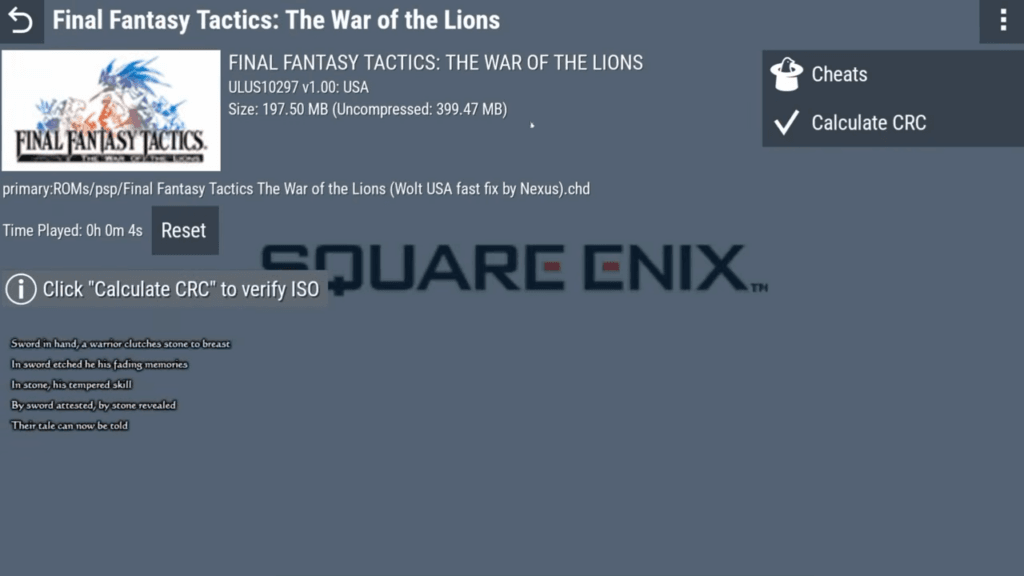
Rename the folder to that.
Then, move that folder into the PPSSPP/PSP/TEXTURES folder.
Once it’s done, click back, and open the game.
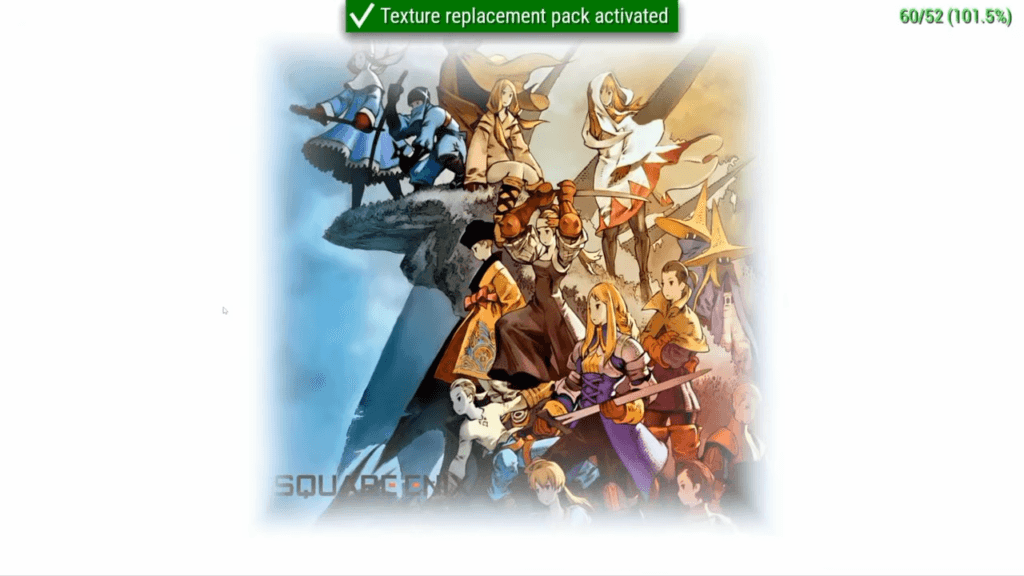
You’ll see texture pack activated at the top to know it’s working and you can now enjoy a high resolution Final Fantasy Tactics.
But now you know how to install any HD texture pack in PPSSPP.
Shaders
Let’s talk about custom shaders next.
PPSSPP has default ones, so head to Settings > Graphics > Display layout & effects > Plus icon under Postprocessing shaders top left and choose the shader to use.
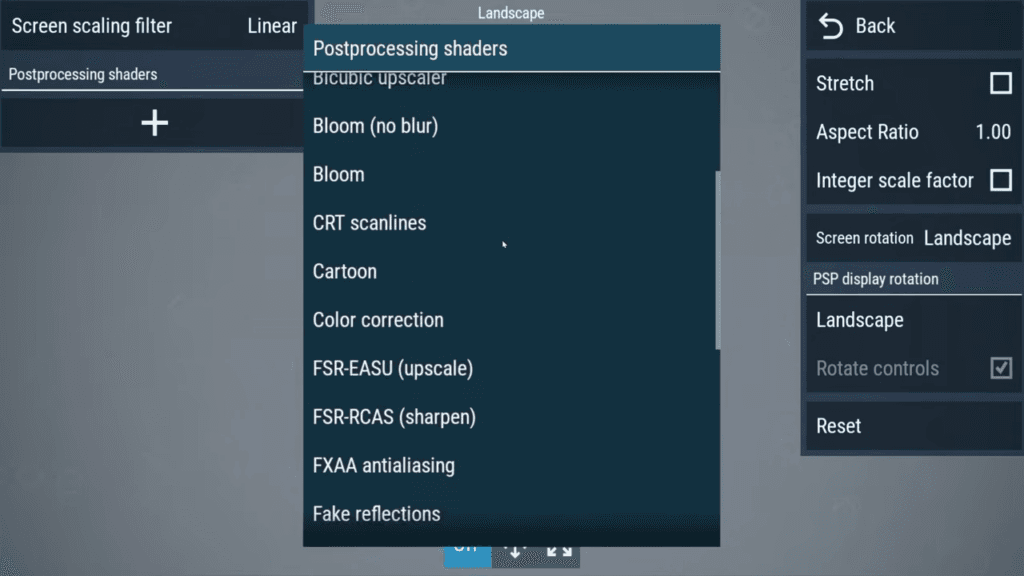
To add your own custom shaders, you can find a list on this Github: https://github.com/jdgleaver/ppsspp_shaders.
Click the green Code button, then Download ZIP.
Extract the zip, and copy all of the contents inside of the folder.
Head to your PSP folder, you should see SAVEDATA, SYSTEM etc.
Create a folder called SHADERS, and paste the files inside of that folder.
Head back to the Postprocessing shaders section and enable your shader.
Fonts
Next up, let’s talk about Fonts.
Some PSP games require the official fonts to work properly, so let’s install them.
Head to the official PPSSPP Github here: https://github.com/hrydgard/ppsspp and click the green <> Code button, then Download ZIP.
Extract the zip and head inside the assets folder.
Copy the flash0 folder, and paste it inside of your PSP folder (next to the other folders like Cheats, GAME, PPSSPP_STATE, SAVEDATA, TEXTURES etc.)
That’s it! For the games that need them, they’ll now work properly.
DLC
Next up let’s talk about how and where to add your DLC if you have any.
DLC’s usually come zipped, so you will have to unzip them to get to the folder inside, which will be the title ID of the game.
You now need to move that folder, and you want to put inside of the PPSSPP folder, PSP, Game folder.
If you have multiple DLC’s, they will all have the same folder name of the game’s title ID, so just merge them.
Load up your game and play your DLC!
Syncthing
PPSSPP can easily be sync’d across all operating systems using Syncthing.
2 comments
https://www.ppsspp.org/download/
3 tiles down there is one calledAPK for Android (free)
pls do know how to
download ppsspp manually